
Brands Setup – How do I add a new Brand?
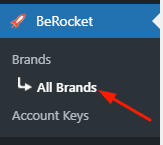
- Open the Admin Bar of your site and follow BeRocket→ Brands→ All Brands.
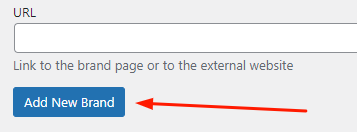
- Select the desired settings and press the Add New Brand button.


Brands Settings
- Name – brand name as it appears on your site.
- Slug – custom brand slug. The “slug” is the URL-friendly version of the name. It is usually all lowercase and contains only letters, numbers and hyphens.
- Parent brand – parent brand. Assign a parent term to create a hierarchy. The term Jazz, for example, would be the parent of Bebop and Big Band.
- Description – brand description, can be displayed on a brand page. The description is not prominent by default; however, some themes may show it.
- Thumbnail – a brand image, can be displayed on a brand page.
- Banner – a huge brand image, can be displayed on a brand page.
- Categoies – categories of products of a certain brand.
- Tooltip – optional message that pops up on hover/mouse click.
- Order – order of outputting brands.
- Featured – featured brands can be output first or you may select to show featured brands only.
- URL – a link to the brand page or to the external website.