
Filter Settings for Date
Attribute and Values
- Limit filter values by products from the selected category – filter values will be taken from the category that you select in this setting
Additional
- Enable collapse option – if the setting is enabled, widget can be minimized:
- Disable – widget can’t be minimized
- Enabled with arrow- arrow for minimizing widgets will be displayed in a widget
- Enabled without arrow – arrow for minimizing widgets will not be displayed in widgets, but the widget can still be minimized
- Enabled with arrow on mobile – arrow for minimizing widgets will not be displayed in widgets on mobile, but the widget can still be minimized
- Minimize the widget on load? – if the option is enabled, the widget will be minimized on page load
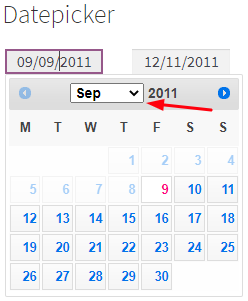
- Date Month Dropdown menu – allows you to enable the display of the drop-down menu in the filter Month
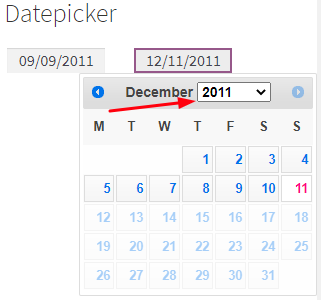
- Date Year Dropdown menu – allows you to enable the display of the drop-down menu in the filter Year
- Date visual style – allows you to select the date output variants in the filter (dd – day, mm – month, yyyy – year)
- Advanced
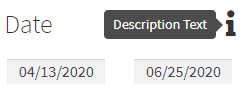
- Description – allows you to add a tooltip with description for the widget
- CSS class – allows you to set a CSS class for the widget
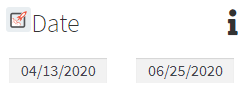
- Icon Before Title – allows you to upload a picture and select Font Awesome to be displayed before the Filter Name
- Icon After Title – allows you to upload a picture or select Font Awesome to be displayed after the Filter Name
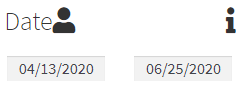
- Icon Before Value – allows you to upload a picture or select Font Awesome to be displayed before the filter value
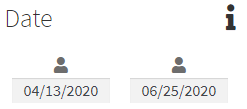
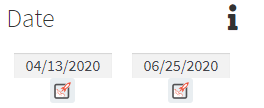
- Icon After Value – allows you to upload a picture or select Font Awesome to be displayed after the filter value
- Description – allows you to add a tooltip with description for the widget


