Limit filter values by products from selected category – vilter values will be taken from the category you select in this setting
Advanced
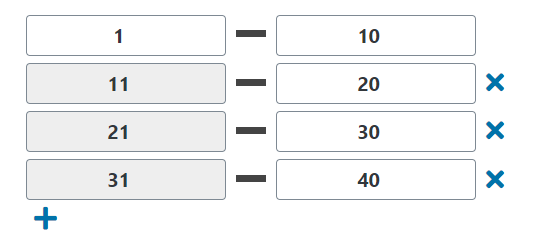
Setting values for Price Range – this setting allows you to specify values for the Price Range(only for Style – Price Range and Price Range Select)
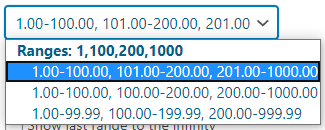
Price Range Display Options –allows you to select one of the price display options from the list(only for Style – Price Range and Price Range Select)
Hide first and last ranges without products –if the first and last range has no products, they will be hidden when this option is enabled(only for Style– Price Range and Price Range Select)
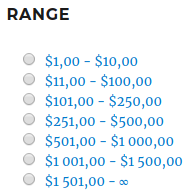
Replace the last range value with an infinity symbol – an infinity symbol will be displayed instead of the last price in the range. You can type another symbol instead of the infinity symbol(only for Style – Price Range and Price Range Select)
Enable minimization option – when the setting is enabled, widget can be minimized:
Disable – widget can’t be minimized
Enabled with arrow –arrow for minimizing widgets will be displayed in a widget
Enabled without arrow –arrow for minimizing widgets will not be displayed in widgets, but the widget can still be minimized
Enabled without arrow on mobile – arrow for minimizing widgets will not be displayed in widgets on mobile, but the widget can still be minimized
Minimize the widget on load? – if the option is enabled, the widget will be minimized on page load
Single Selection. Only one value can be selected at a time – if the option is enabled, only one value of the Price Range can be selected(only for Style – Price Range and Price Range Select).
Show products count per attribute value? – when the setting is enabled, the number of products will be displayed with each filter value(only for Style – Price Range and Price Range Select)
The number of Attribute values – the number of values of Price Range, which will be displayed in the widget; other values of Price Range can be seen by clicking on “Show value(s)”. Setting Hide the Show/Hide value(s) button in filters must be disabled(onlyfor Style – Price Range and Price Range Select)
Show/Hide button – By default, Always visible, Always hidden.
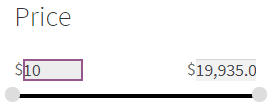
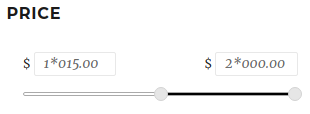
Enable Slider input fields – enables fields for manual input “from” and “to”(only for Style – Slider)
Use custom values (comma-separated) – allows you to type values by which the price slider will switch(only for Style – Slider and New Slider)
Use custom minimum price – allows you to set the minimum price displayed in the price slider(only for Style – Slider and New Slider)
Use custom maximum price – allows you to set the maximum price displayed in the price slider(only for Style – Slider and New Slider)
Text before Slider value – allows you to type text or a special symbol before the value in the slider(only for Style – Slider and New Slider)
Text after Slider value – allows you to type text or a special symbol after the value in the slider(only for Style – Slider and New Slider)
Use specific number style:
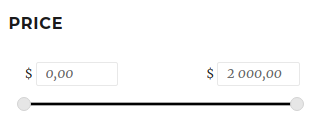
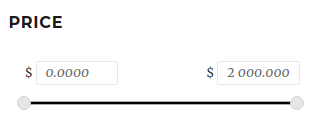
Thousands separator – allows you to set the thousands separator for the filter Price
Decimal separator – allows you to set the decimal separator sign for the filter Price
Number Of Decimal – allows you to set the number of digits after comma for the filter Price
Advanced
Description – allows you to add a tooltip with description for the widget
CSS class – allows you to set a CSS class for the widget
Icon Before Title – allows you to upload a picture or select Font Awesome to be displayed before the Filter Name
Icon After Title – allows you to upload a picture or select Font Awesome to be displayed after the Filter Name
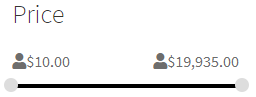
Icon Before Value – allows you to upload a picture or select Font Awesome to be displayed before the filter value
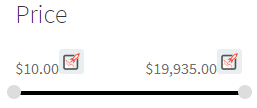
Icon After Value – allows you to upload a picture or select Font Awesome to be displayed after the filter value